

Push to talk
PTTHex
Talk to your team the way a radio works. Hold one control, and everyone tuned to the same channel hears you straight away.
- What it is
- A push to talk application
- Who it is for
- Teams that work apart and talk constantly
- Where it runs
- Android, iOS and the web
The talk screen
One control, and the floor is yours
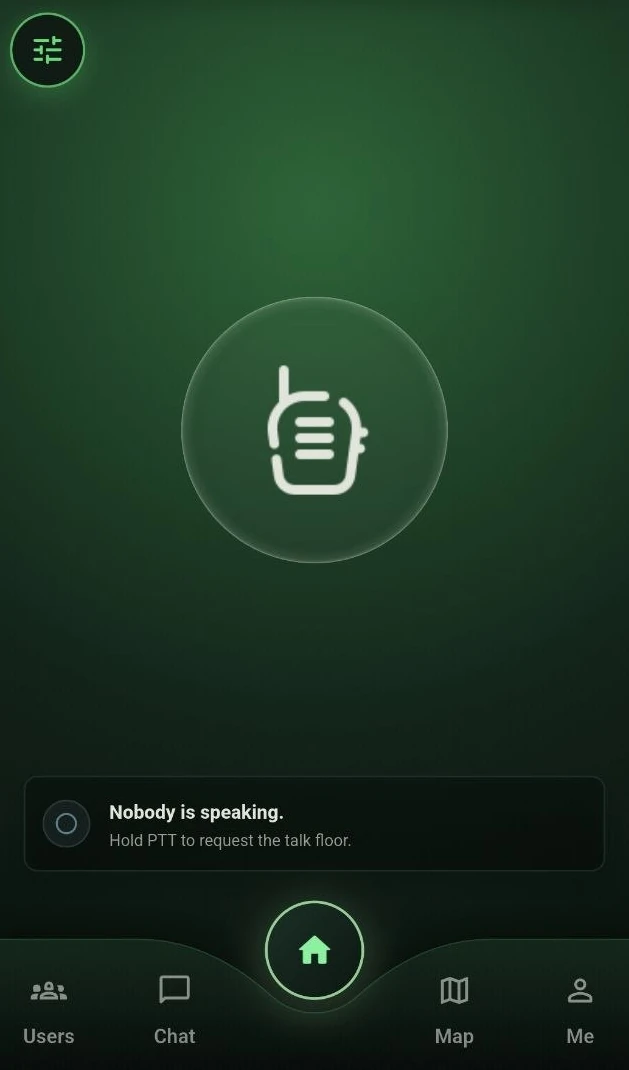
The talk screen is the product in one view. A dial across the top tunes the channel, the control in the middle takes the talk floor while it is held, and the line under it says who is speaking now.
An SOS is raised from the same screen, so nobody has to find another place to send one from.
The rest of it
Four areas, along the bottom of every screen
People, chat, the map and your account. They are always one tap away, so nothing is buried in a menu.
-
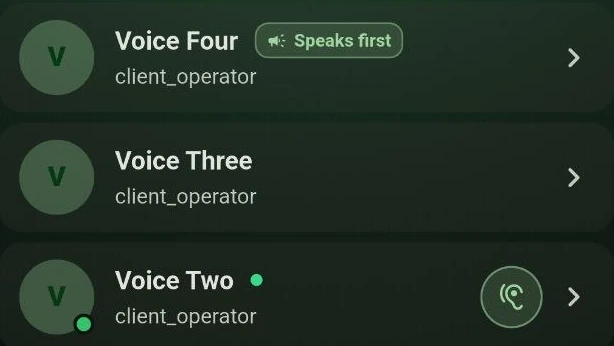
Every person carries a role and a state, so you can see who is on before you talk. -
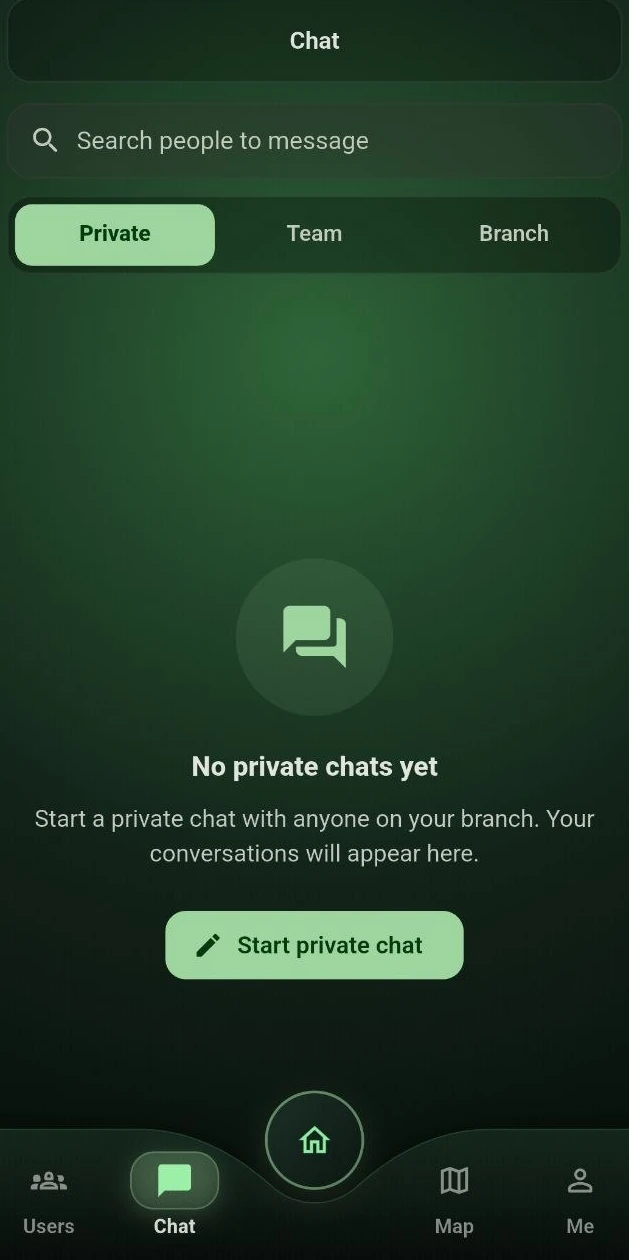
Messages sit beside the talking, for the things that are better written down. -
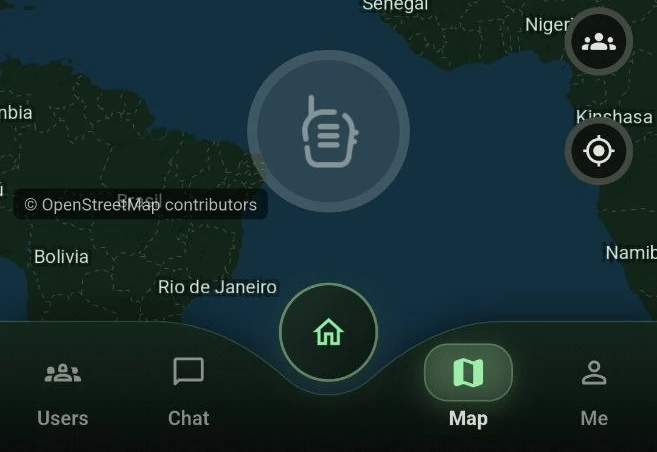
The map shows where the team is. Map data by OpenStreetMap contributors. -
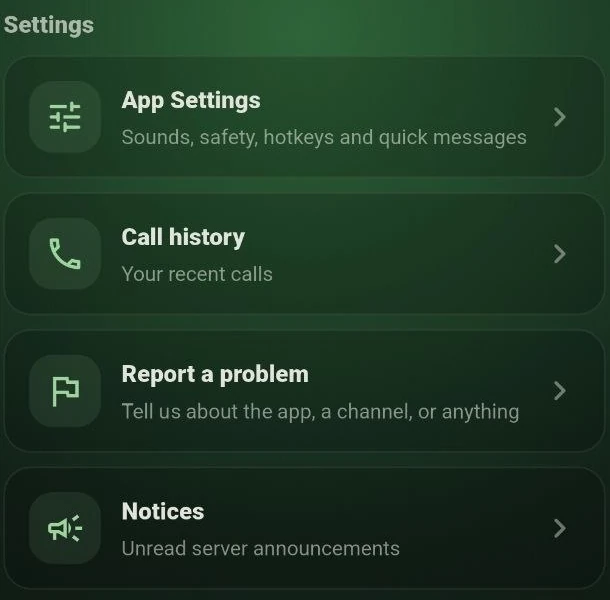
Sounds, hotkeys, recent calls and a way to report a problem, all in one place.
Messages
One person, your team, or the branch
-

A message is addressed to one person, to your team, or to the whole branch. -

Find anyone on your team or your branch by typing part of their name.
Getting in
Three ways to start
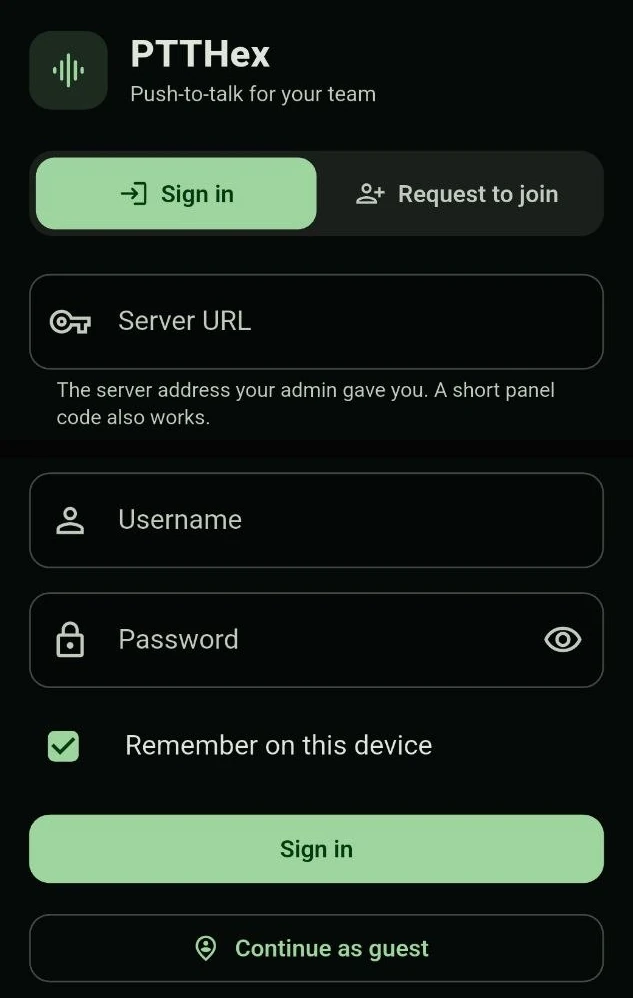
Use the address an administrator gives you, ask to join, or continue as a guest. Which of the three applies is the organisation's decision, not the application's.
The fields in this picture are empty, and no address of any deployment is published here or anywhere else on this site.